
This article was updated on Jan 23, 2026
To edit a PDF on your iPhone, open the file in the MobiPDF app and use the available tools to edit text, add annotations, sign forms, or update content without changing the original layout.
Editing PDFs on iPhone is essential when you need to review or update documents on the go. MobiPDF provides clear, easy-to-use tools that let you make quick edits while keeping files organized and readable — whether you’re working with contracts, school materials, or scanned documents.
Key takeaways
Edit text, comments, and annotations directly on your iPhone
Sign and fill PDF forms while on the move
Preserve layout and formatting when making changes
Ideal for business, education, and everyday document tasks
What editing a PDF on iPhone means
Editing a PDF on iPhone goes beyond simply adding text. With MobiPDF, you can modify existing content, insert new information, sign forms, and reorganize pages directly within the document.
This allows you to handle everything from quick corrections to full document updates without needing a computer. MobiPDF makes it possible to complete professional document tasks smoothly and efficiently – right from your phone.
How to edit a PDF on iPhone with MobiPDF
To edit a PDF on your iPhone using MobiPDF, open the file, select the editing tool you need, and tap the part of the document you want to change.
MobiPDF offers a straightforward editing workflow that’s easy to follow, even if you’ve never edited a PDF before. You can choose between text editing, annotations, drawing tools, or page management, and each tool works intuitively to help you make changes accurately.
Steps to edit a PDF on iPhone:
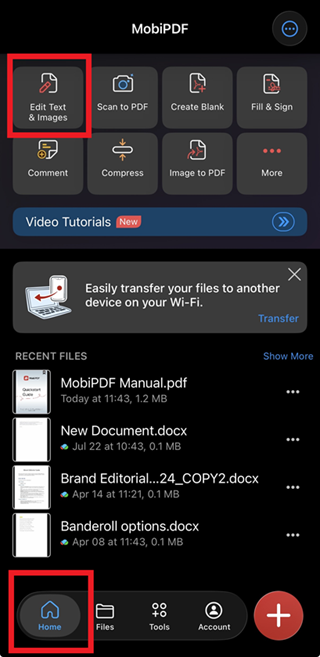
Open MobiPDF.
From Home go to Edit Text and Images and load your pdf document from a file on your phone or from the cloud.
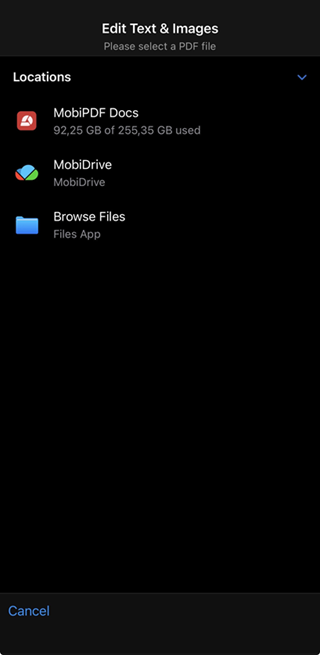
Tap Edit to open the editing options.
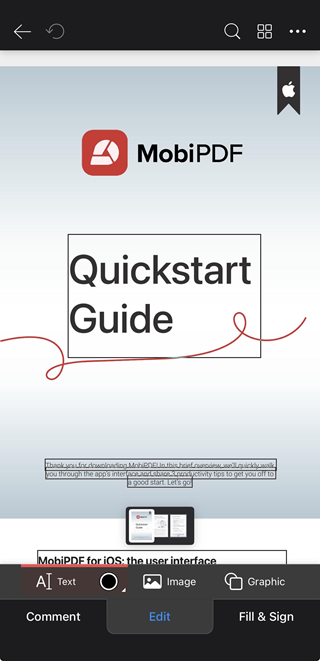
Choose the tool you need, such as Comment, Edit, and Fill & Sign.
Tap the area you want to change and make your updates.
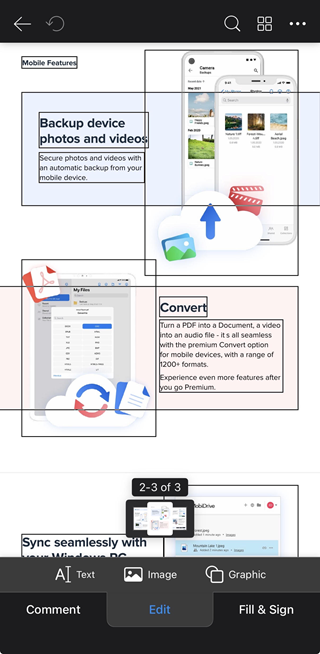
Save your edited version.
Now you can update any PDF document, even when you are on the go, making daily tasks quick and easy.
How to edit text in a PDF on iPhone
Changing the text inside a PDF is one of the most common tasks. MobiPDF lets you do this directly on the page. You simply tap the text you want to update, type the new content and save the file. This is useful for fixing spelling errors, correcting details or adding missing information without having to recreate the entire document.
Steps to edit text:
Open the PDF with MobiPDF.
Tap Edit and choose Text.
Tap the part you want to change and type your new text.
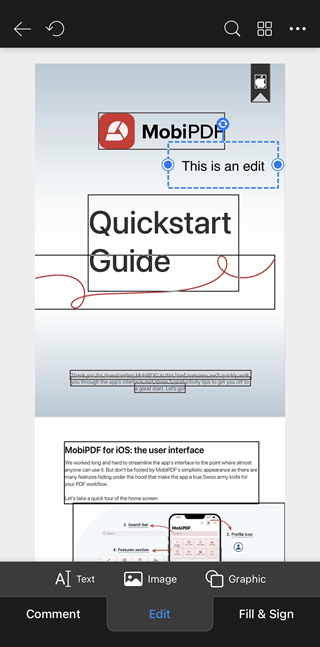
Save the updated document.
The process is simple and lets you edit the text in your PDF file directly on your mobile device.
How to add notes and highlights on iPhone
To add notes or highlights on iPhone with MobiPDF, open your PDF in the app, choose a markup tool, and tap or drag over the part of the document you want to mark.
When you don’t need to change the original text, MobiPDF makes it easy to review and comment on PDFs. You can highlight sentences, underline key points, add notes, or draw simple shapes to explain or emphasize information — ideal for studying, reviewing documents, or preparing files for work. 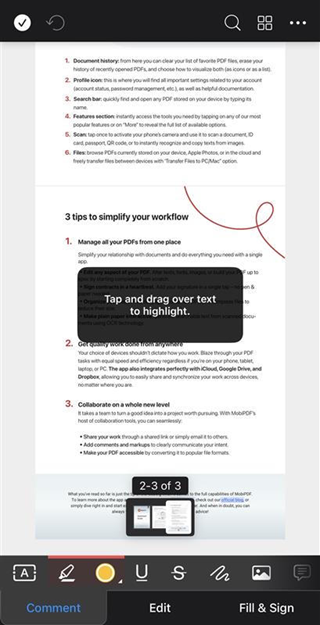
Helpful markup tools:
Highlight
Underline
Comments
Freehand drawing
Shapes like circles or boxes
These tools make it easy to communicate ideas or review documents clearly.
How to reorder or delete pages in a PDF on iPhone
To reorder or delete pages in a PDF on iPhone with MobiPDF, open the page view, select the pages you want to move or remove, and apply the changes.
MobiPDF lets you quickly clean up and reorganize PDFs by rearranging pages, adding new ones, or removing content you no longer need. This is especially useful when preparing reports, merging documents, or refining files before sharing.
Steps to manage pages:
Open MobiPDF.
From Home go to Organize Pages.
Select your PDF.
Delete or add pages as needed.
Save the new layout.
The process is simple and gives you control over the entire document.
How to sign a PDF on iPhone
Signing PDF files on an iPhone is simple with MobiPDF. Instead of printing and scanning, you can sign directly on the screen with your finger. The signature looks clean and stays in place when you save the document.
Steps to sign a PDF:
Open the PDF in MobiPDF.
Tap the Fill & Sign tool.
Draw your signature with your finger.
Place it on the document.
Save your signed file.
This is ideal for fast approvals and form submissions.
Frequently asked questions
Can I edit real text in a PDF on my iPhone?
Yes. MobiPDF lets you tap on existing text and edit it directly. You can fix mistakes, add missing details or update old information.
Can I add comments or highlights to a PDF on iPhone?
Yes. You can use highlight, underline, notes or drawing tools to mark important areas.
Can I delete pages inside a PDF?
Yes. MobiPDF lets you delete pages, or add new ones. This makes it easy to organize long documents and remove versions you no longer need.
Will my PDF keep its quality after editing?
Yes. MobiPDF protects the original layout and keeps the text sharp after you save it.
Edit PDFs on your iPhone with confidence
With MobiPDF, you can update text, add notes, sign forms, organize pages, and use scanned files directly on your iPhone. The tools are simple, the layout stays clean, and you can save a new version in seconds.