

Exploring MobiOffice Collaboration Tools
This guide will help you start using MobiOffice collaboration tools, so your team can review and finish work without passing versions back and forth. MobiOffice gives you several ways to work on files with other people: track edits, leave comments, and share files. Most steps use MobiDocs on Windows, but comments and sharing also work in MobiSheets and MobiSlides.
Before you begin
Make sure you have:
MobiOffice installed. See Installing MobiOffice on multiple devices.
Signed in with your MobiSystems account, which you need to share and co-edit.
A file saved to MobiDrive, so others can open it. See Creating and viewing files with MobiDrive.
An internet connection.
Track Changes: record edits as you work
Track Changes marks every edit with the author and date, so you can see exactly what changed and accept or reject it later. Track Changes is part of MobiDocs.
Note: Track Changes is a Premium feature. If you're on the Free plan, turning it on will prompt you to upgrade.
Turn on Track Changes
1. Open your document in MobiDocs.
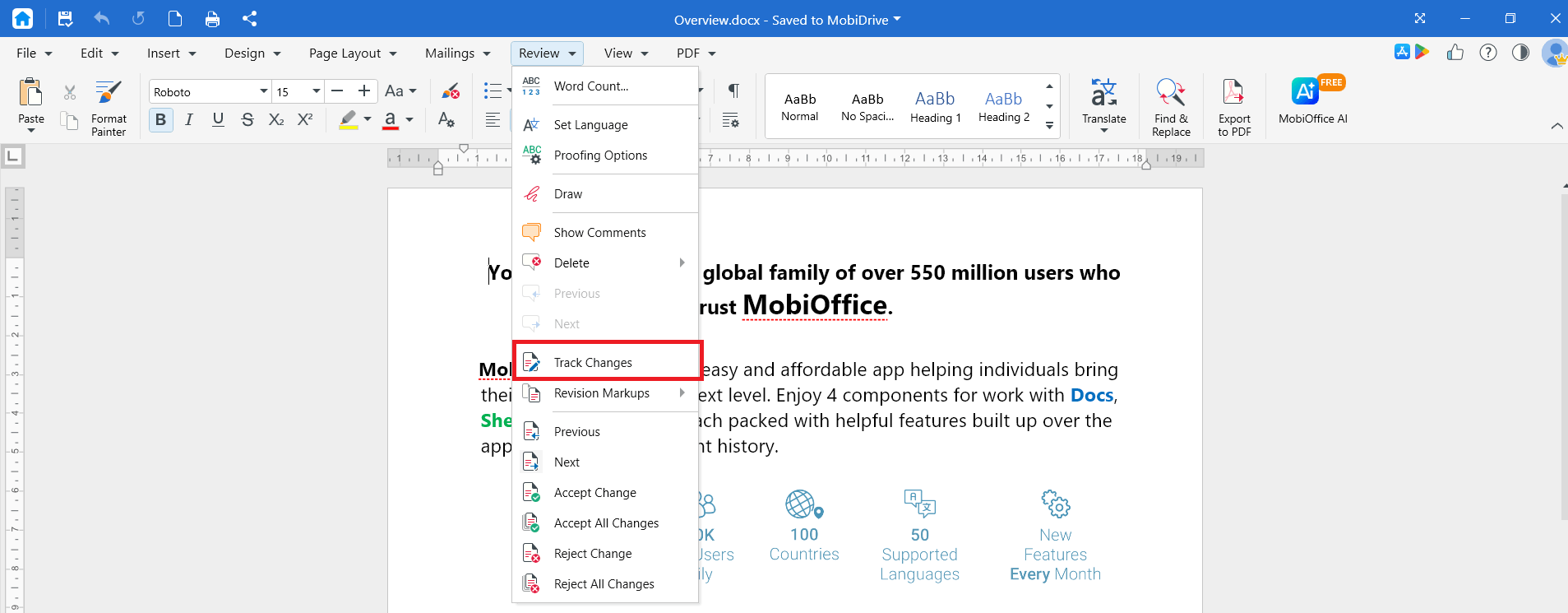
2. Click the Review menu.
3. Click Track Changes. Any edits you make now are marked.
Choose how changes appear
1. In the Review menu, click Revision Markups.
2. Pick how you want edits displayed:
Simple markup shows clean text and marks changed lines with a sideline.
Entire Text shows edits as balloons next to each line.
Final shows the document as it looks with changes applied.
Original hides edits but still tracks them.
Accept or reject changes
1. Click Next or Previous to move between changes.
2. Click Accept Change to keep one or Reject Change to remove it.
3. To finish in one step, click Accept All Changes or Reject All Changes.
4. Click Track Changes again to turn it off, then save your document.
Comments: leave notes without changing the file
Comments let you add feedback or questions without editing the content. Comments work in MobiDocs, MobiSheets, MobiPDF, and MobiSlides.
In MobiDocs and MobiSheets, adding a comment is a Premium feature; it's free in MobiPDF, and MobiSlides.
Add a comment
1. Select the text, cell, or object you want to comment on.
2. Right-click on the selected text (or select a cell in the case of MobiSheets) then choose Insert Comment (or Comment in MobiSheets) from the context menu. In MobiSlides, click the Review menu, then click Comment.
3. Type your note.
Review and remove comments
1. Click Next or Previous to move between comments.
2. Click Delete Comment to remove the selected comment.
Collaboration with MobiDrive
MobiDrive keeps a shared file up to date across everyone who has access to it — think of it as always-synced cloud storage, rather than everyone typing into the same document at the same moment.
Save your file to MobiDrive.
Share it and give your collaborators edit permission.
When a collaborator opens the file from MobiDrive and saves their changes, the update uploads to the cloud. The next time you open or refresh the file, you'll see their latest version.
To avoid overwriting each other's work, it's best to coordinate who's editing a shared file at any given time, rather than assuming changes merge automatically while multiple people type at once.
Troubleshooting
I don't see Track Changes or Comments. These tools are in the Review menu in MobiDocs. Open a document, then click Review.
My edits aren't being tracked. Turn on Track Changes from the Review menu before you start editing.
Someone can only view the file I shared. Recipients can view by default. Give them edit permission and make sure they sign in to MobiOffice.
A comment won't go away. Select the comment, then click Delete Comment in the Review menu.
Two of us edited the file at the same time and one set of changes is missing. MobiDrive syncs the saved version of a file — it doesn't merge simultaneous edits from two people. Whoever saves last overwrites the previous save. Coordinate with collaborators before editing the same file at the same time.
Where to go next
You now know the main ways to collaborate in MobiOffice. Next, learn how to set up files and share them across your devices.


