

Getting started - How to start using MobiPDF
Downloading MobiPDF
To download the latest version of MobiPDF for PC, simply click on the “FREE DOWNLOAD” button on our home page and follow the on-screen instructions. You can also download MobiPDF for Windows, iOS, and Android from our official download page.
Installing MobiPDF
Installing MobiPDF on Windows is simple. Here is the step-by-step process:
1. Double-click the installation file.
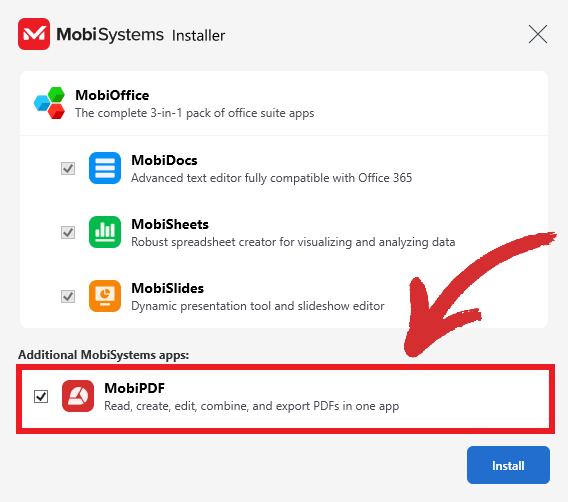
2. Select MobiPDF from the list of available options, then click “Install”.
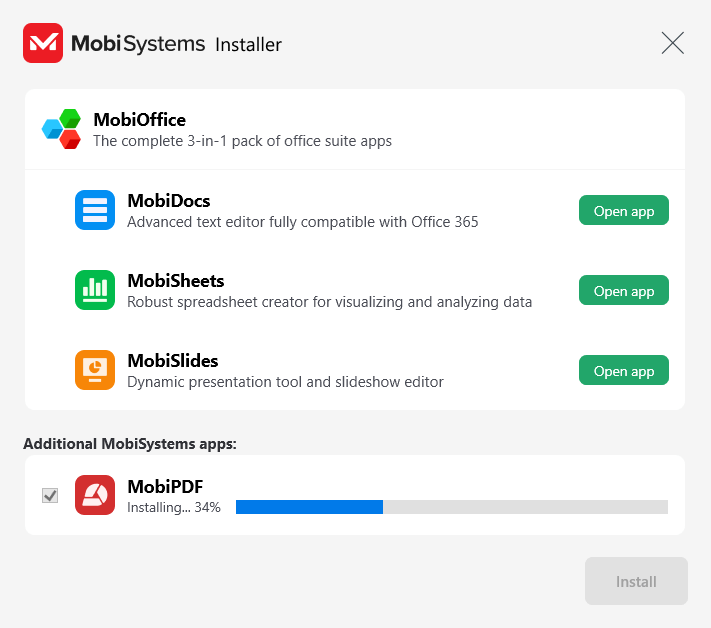
3. Wait for the installation to finish.
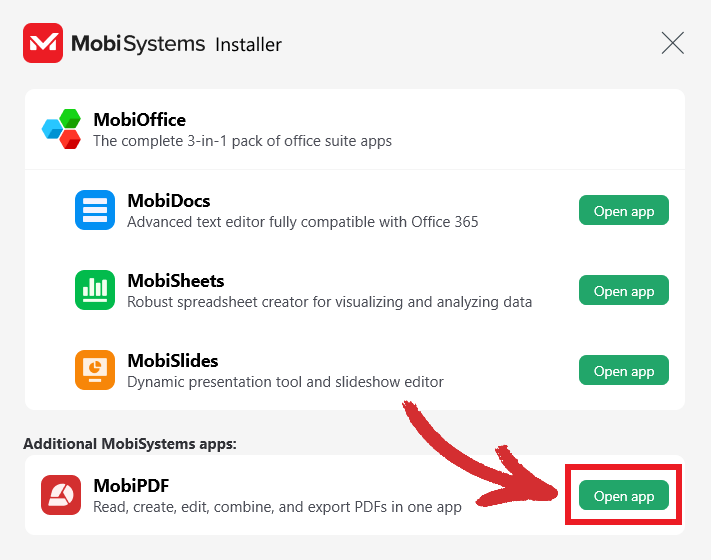
4. Click “Open App” to start working right away!
Activation on a second device
The MobiPDF Lifetime license can be activated on one Windows device, while MobiPDF Pro can be used on one Windows PC and up to two mobile devices running Android and/or iOS. This means you cannot use the software on more devices than your plan allows.
NOTE: Only MobiPDF Pro lets you transfer the Windows activation to another device by removing the current device from your MobiSystems account and signing in on the new one. A MobiPDF Lifetime license is locked to the Windows desktop on which it was first activated and cannot be transferred to another device.
Here is how you can transfer your license step by step:
1. Download and install MobiPDF on your second device.
2. Log into the app using the same credentials as on your first device.
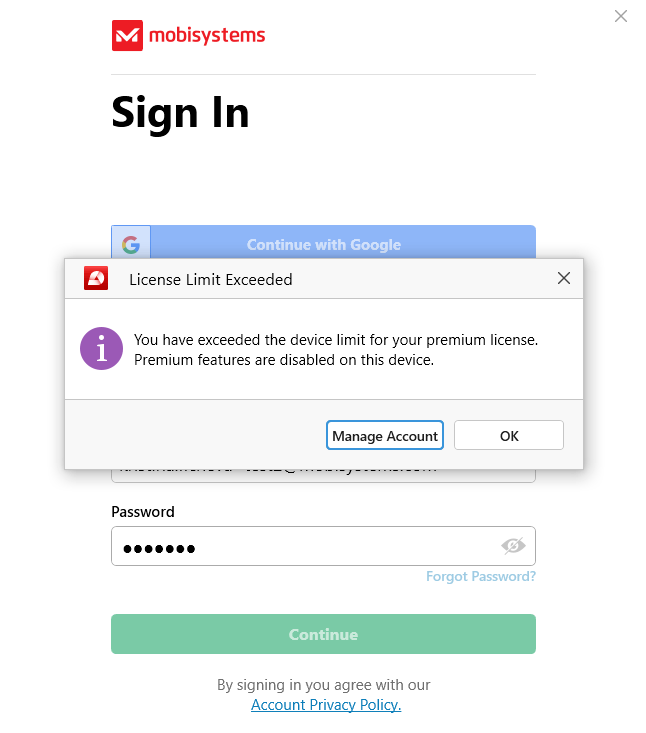
3. Upon successful login, you should see the following pop-up:
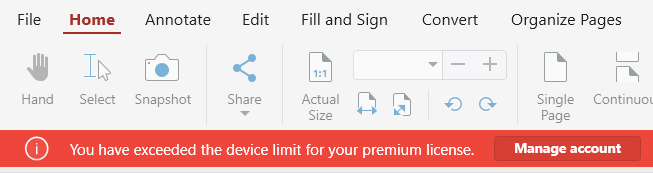
NOTE: A similar message should appear if you try to log in with your credentials through the “Account” section of MobiPDF.
4. Click on “Manage Account” to view your current purchases and subscriptions, then click on “Linked Devices”. This will reveal a list of all devices on which your license is active.

Click on “Remove” and MobiPDF will automatically activate your license on your currently used machine.
Please note that reactivating your license on your first PC will require you to go through the same steps.


