

Opening and Navigating PDF Files
This guide shows you how to open a PDF in MobiPDF Reader on Windows and move around it with ease. You'll learn how to open files from your device or the cloud, jump between pages, zoom in and out, change the page view, and search for text. These are the everyday reading skills you'll use most. If you have MobiOffice installed and you're signed in, you're ready to start.
Before you begin
Make sure you have:
MobiOffice installed on your Windows device, with MobiPDF Reader included. See Introduction to MobiPDF Reader.
Signed in with your MobiSystems account.
A PDF saved on your device or in a connected cloud service.
An internet connection, if you want to open files from the cloud.
How to open a PDF
1. Open MobiPDF from the Windows Start menu.
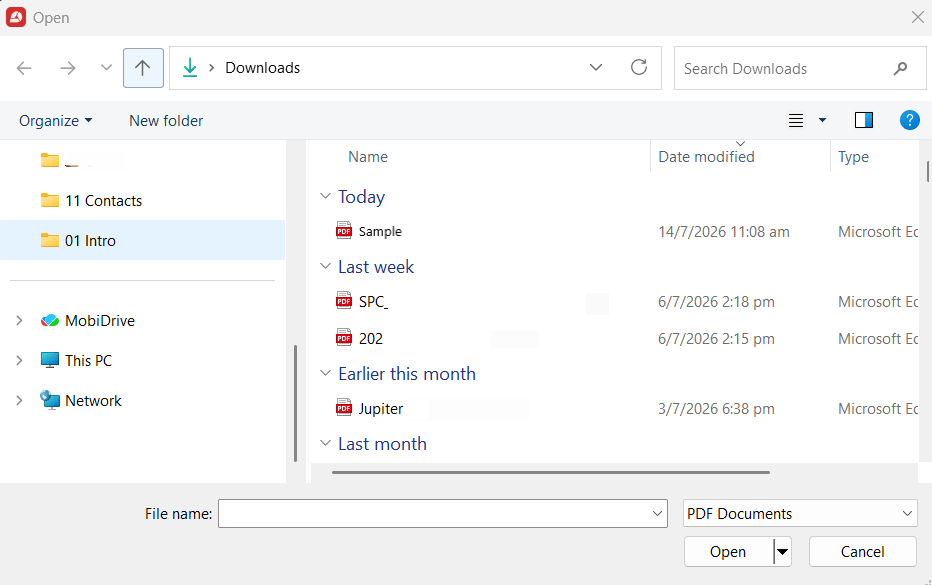
2. Click Open in the left menu.
3. Choose where your file is stored: your device, MobiDrive, or a connected service such as Google Drive, OneDrive, or Dropbox.
4. Select the PDF you want to open.
5. Click Open.
Your PDF opens and fills the document area, ready to read.
Open a recent file
On the Home screen, find the file in the recent files list and click it.
Open a PDF from File Explorer
In File Explorer, right-click the PDF file.
Select Open with, then choose MobiPDF.
How to navigate a PDF
Once your PDF is open, use these tools to move through it quickly.
Move between pages
Scroll up or down to move through the document.
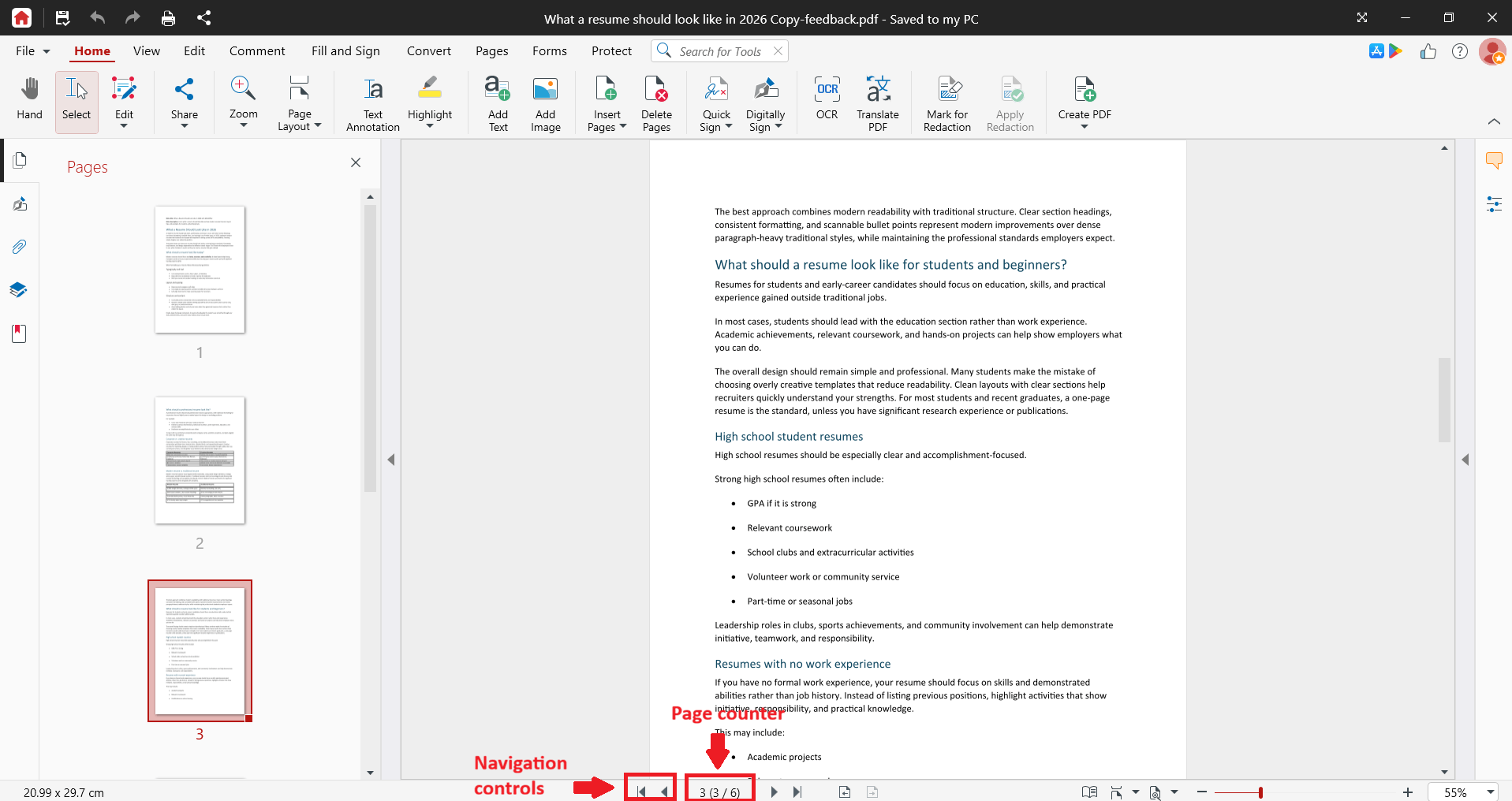
Use the navigation controls to go to the previous page, the next page, or jump to the first or last page.
To go to a specific page, double-click the page counter, type the page number, and press Enter.
Open the Pages panel to see a scrollable list of page thumbnails. Click any thumbnail to jump straight to that page.
Zoom in and out
Click the zoom controls to zoom in or out in 10% steps.
To set a custom level, double-click the zoom percentage and type a value.
Choose Fit Page to see the whole page, Fit Width to match the page to the window width, or Actual Size to view the PDF at its original size.
Change the page view
Single Page: shows one page at a time, without scrolling.
Continuous: shows all pages in one scrollable view.
Rotate Pages: turn the view clockwise or counterclockwise, which is useful for scanned or landscape pages.
Hand: drag the page around to reposition your view.
Select: select text or images in the document.
Search for text
Click Find, or press Ctrl+F.
Type the word or phrase you're looking for.
(Optional) Narrow your results with Match case or Whole words only.
Note: Scanned pages and images are pictures, not text, so search can't find words inside them. Making scanned files searchable requires OCR, which is available in the full MobiPDF.
Troubleshooting
I can't find MobiPDF Reader in the Start menu. Search for "MobiPDF" instead — that's the name the app uses in Windows. "Reader" only shows up inside the app itself.
My PDF won't open. Confirm the file is a PDF and isn't damaged. If it's stored in the cloud, check your internet connection and sign in again.
Search doesn't find text I can see. The page may be a scanned image. Text inside scans is only searchable after you apply OCR in the full MobiPDF.
The text is too small or too large. Use Fit Width or Fit Page or set a custom zoom level.
A tool I expected isn't showing. MobiPDF Reader includes basic markup (highlight, comments, underline, strikethrough, draw) and limited Fill & Sign. More advanced tools like conversion, compression, PDF security and protection, OCR, or forms creation require the full MobiPDF.
Where to go next
You can now open PDFs and move through them with confidence. Here's where to go next:


