

Printing and Exporting PDFs
This guide shows you how to print a PDF in MobiPDF Reader on Windows and share it with others. You'll learn how to send a PDF to a printer and share a PDF by cloud link or email. You'll also see how to export a PDF to Word, Excel, or other formats, which requires the full MobiPDF. Printing and sharing are included with your MobiOffice license, so you can start right away.
Before you begin
Make sure you have:
MobiOffice installed on your Windows device, with MobiPDF Reader included. See Introduction to MobiPDF Reader.
Signed in with your MobiSystems account.
A PDF open in MobiPDF Reader. See Opening and navigating PDF files.
An internet connection, if you want to print to a network printer or share by cloud link.
How to print a PDF
1. Open your PDF in MobiPDF Reader.
2. Press Ctrl+P or open the menu and click Print.
3. Choose your printer from the list.
4. Set the number of copies and the pages you want to print.
5. (Optional) Set the orientation and paper size.
6. Click Print.
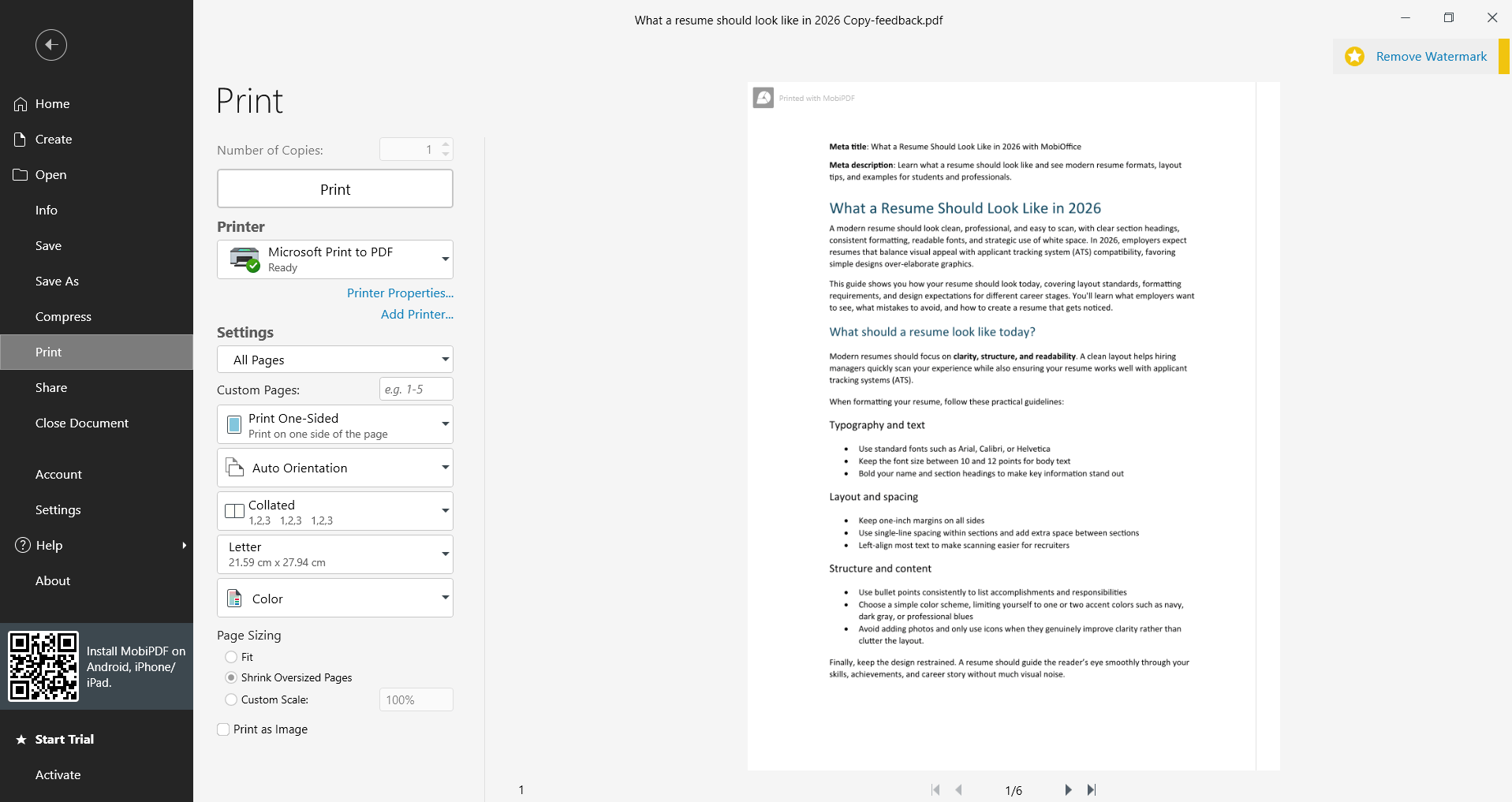
Important: MobiPDF Reader adds a watermark to printed pages. To print without a watermark, upgrade to the full MobiPDF.
How to share a PDF
You can send a PDF straight from MobiPDF Reader, without saving it somewhere else first.
1. Open your PDF in MobiPDF Reader.
2. Click Share.
3. Choose how to send your file:
Share Link: share a link to the file on MobiDrive.
Share File: attach the file to a new email.
Zip & Share File: attach the file as a compressed .zip file.
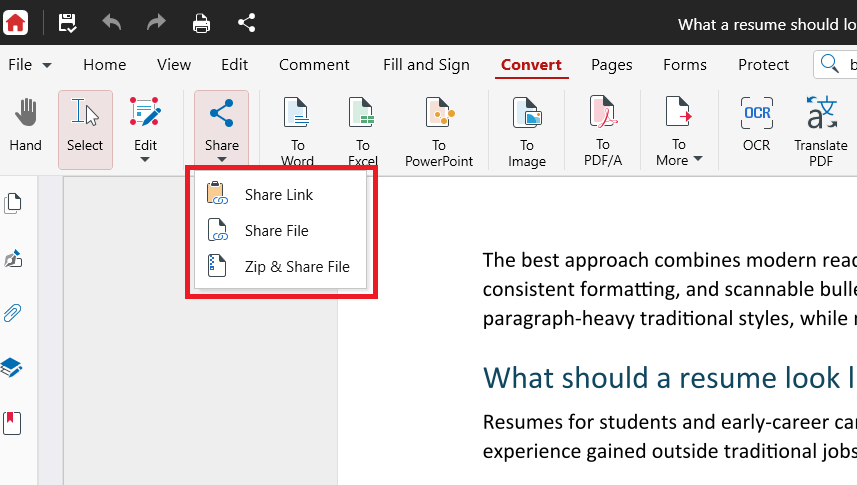
4. Follow the prompts to finish sending.
Note: Sharing a cloud link needs an internet connection and available MobiDrive storage.
How to export a PDF to Word, Excel, or other formats
Exporting means converting your PDF into another format you can edit, such as a Word document, an Excel spreadsheet, a PowerPoint presentation, or an image file.
MobiPDF Reader doesn't include the PDF converter, so exporting isn't available in the free Reader. To export PDFs, upgrade to the full MobiPDF.
With the full MobiPDF, you can:
Convert PDFs to Word, Excel, PowerPoint, EPUB, and image files.
Convert those same formats back into PDFs.
Keep the original layout and formatting during conversion.
To compare plans and unlock exporting, see the MobiPDF product page.
Troubleshooting
My printed file has a watermark. MobiPDF Reader adds a watermark to printed pages. Watermark-free printing requires the full MobiPDF.
Nothing happens when I click Print. Check that your printer is turned on and connected.
I can't find an option to save as Word or Excel. Exporting to other formats isn't part of MobiPDF Reader. It requires the full MobiPDF.
The Convert or Export tools are greyed out. This is expected. MobiPDF Reader focuses on reading, printing, and sharing. Editing and conversion tools require the full MobiPDF.
My shared link won't send. Check your internet connection. Sharing a cloud link also needs available space in your MobiDrive storage.
Where to go next
You can now print and share your PDFs in MobiPDF Reader. Here's where to go next:


