

Issues when using MobiDrive
This guide helps you fix the most common problems with MobiDrive, the cloud storage integrated with MobiOffice: files that won't sync, a sync folder you can't find, full storage, share links that don't work, and files that aren't available offline. Most steps focus on the MobiDrive widget on Windows, with notes for the web and mobile apps. Work through the section that matches your problem and try the steps in order.
Before you begin
Make sure you have:
MobiOffice or the MobiDrive app installed, and your MobiSystems account signed in.
An internet connection. MobiDrive needs one to sync files between your device and the cloud.
Your files saved inside your MobiDrive folder, since only files in that folder sync automatically.
Your files won't sync
If your changes aren't showing up on your other devices, your files may not be syncing.
1. Check that your device is online and signed in to your MobiSystems account.
2. Open the MobiDrive widget in your Windows taskbar and check the status. Up to date means every file is synced between your MobiDrive folder and the cloud.
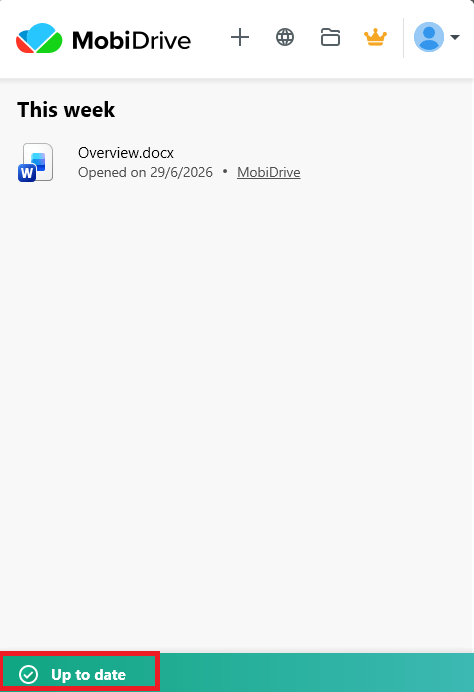
3. If the status shows that files are still uploading, wait for it to finish, then check again.
4. Make sure the file is saved inside your MobiDrive folder. Files saved anywhere else don't sync automatically.
5. If you've never set up sync, open the widget, click Get started, sign in, and choose a location for your MobiDrive sync folder.
6. If a specific file won't upload, check its size. Individual files over 200 MB won't sync on the Free plan — compress the file, or upgrade to Premium, which has no per-file size limit.
Note: Every file you save inside your MobiDrive folder syncs to the cloud automatically once you're connected.
You can't find your MobiDrive folder
If you're not sure where your synced files are stored, you can open or move the folder from the widget.
1. Click the MobiDrive widget in your Windows taskbar.
2. Click the folder icon to open your sync folder, or click Account > Preferences, then click the location to open the folder.
3. To move the folder, in Preferences click Move, choose a new location, and confirm with OK.
MobiDrive storage is full
If you can't upload or sync new files, your cloud storage may be full. If the upload error happens on one large file specifically rather than because your account is full, check that file's size — individual files are capped at 200 MB on the Free plan; Premium has no per-file limit.
1. Click the MobiDrive widget, then click the web icon to open your MobiDrive cloud in a browser.
2. Click Bin and select the files you no longer need.
3. Click Delete, then confirm with Delete.
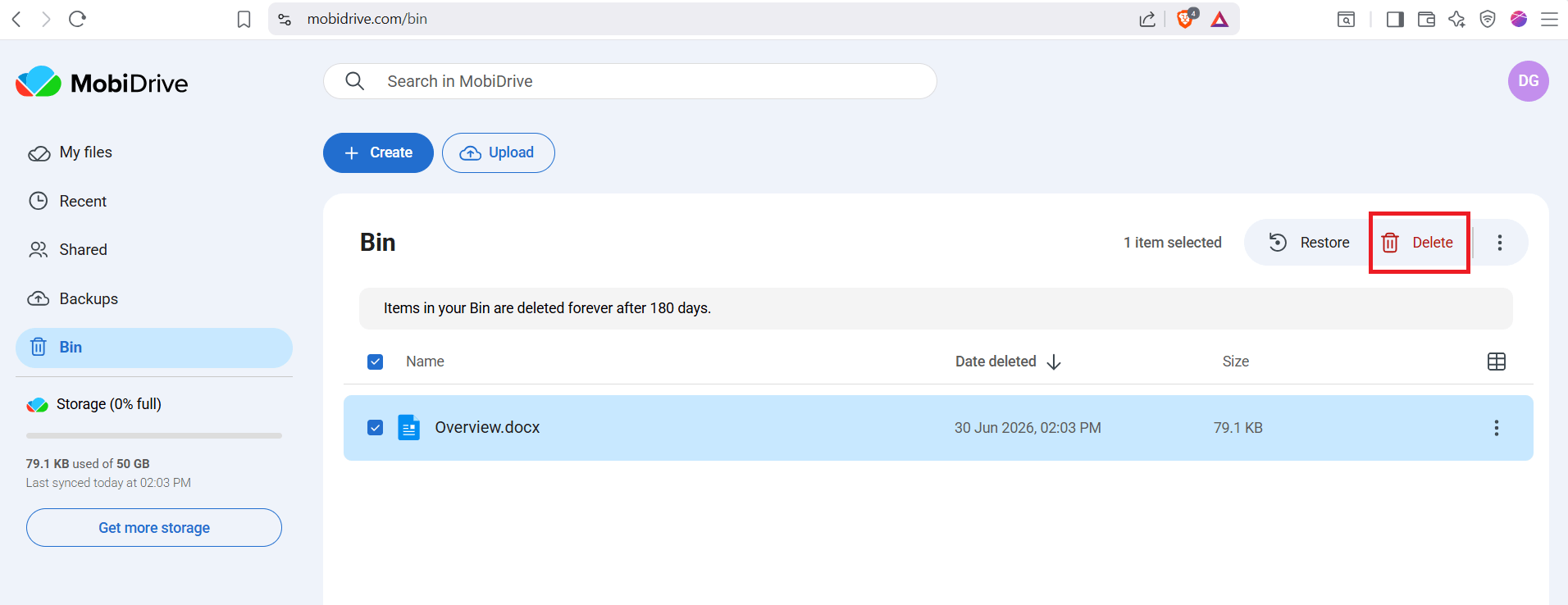
4. Check your storage usage in your MobiDrive cloud or in your My Account dashboard.
Note: Deleting files from the Bin can't be undone. Make sure you no longer need a file before you remove it permanently.
A file is missing after you deleted it
When you delete a file from your MobiDrive folder or cloud, it isn't gone right away. It moves to the Bin, where you can restore it.
1. Click the MobiDrive widget, then click the web icon to open your MobiDrive cloud.
2. Click Bin and find the file you want back.
3. Select the file then click Restore to restore the file in your MobiDrive folder.
Note: Files stay in the Bin only until you empty it. After that, they can't be recovered.
A shared link isn't working
If someone can't open a file you shared, the link may be broken, or the file may have moved.
1. Check that the file is still in your MobiDrive folder and not in the Bin.
2. Create a fresh link. In your MobiDrive folder, right-click the file and select MobiDrive > Share with MobiDrive to get a shareable link.
3. Paste the new link into your email, chat, or message and send it again.
Files aren't available offline
MobiDrive files live in the cloud, so you need to mark a file for offline use before you lose your connection.
While you're online, mark the files or folders you'll need for offline use. After that, you can open them without an internet connection.
For the exact steps on your device, see Make MobiDrive files available offline on Android or Use MobiDrive files offline (iOS).
Still need help?
If your MobiDrive problem continues, MobiSystems support can help.
Reconnect to a stable internet connection and reopen the MobiDrive widget or app before trying again.
Submit a request to MobiSystems support and describe the issue, your device, and when it started.
Where to go next
You've sorted out your MobiDrive issue. Here's what to do next:


