

Unexpected app crashes
This guide helps you fix unexpected crashes in MobiOffice, when a module like MobiDocs, MobiSheets, or MobiSlides closes on its own or stops responding. Crashes usually come from a temporary glitch, an outdated version, a very large file, or low memory and storage. The steps below start with fixes that work on any device, then cover Windows, Mac, Android, and iOS in turn. If a crash interrupted your work, start with the recovery section so you don't lose your file.
Before you begin
Make sure you have:
The latest version of MobiOffice installed on your device.
Your files backed up to MobiDrive, another cloud service, or local storage.
Enough free storage. Keep 10–20% free on a computer, and 3–5 GB free on a phone or tablet (at least 1 GB).
Recover your work after a crash
If MobiOffice closed unexpectedly, recover your unsaved work before you do anything else.
1. Reopen the module that crashed (for example, MobiDocs). A file recovery window should appear.
2. Follow the prompts in the recovery window to restore your unsaved document.
3. If the file was saved to MobiDrive, open MobiDrive, click the three dots next to the file, and select Version History to restore an earlier version.
Note: Version History is a Premium feature — Free plan users may not be able to access it. If you don't see it, check your other save locations below instead.
4. If you still can't find the file, check your other save locations: local folders on your device, other cloud services (Google Drive, OneDrive, Dropbox), and any external drives or SD cards.
Note: MobiSystems can't access your files for privacy reasons, so always keep your own backup. A file that wasn't synced or saved to the cloud can only be recovered from your device.
Source: Lost Files or Recovery Options.
Quick fixes to try first
These fixes work on any device and resolve most crashes. Try them in order.
1. Restart the app. Fully close MobiOffice, then reopen it. This clears temporary glitches.
2. Update to the latest version. Updates include bug fixes that often stop crashes. On Windows and Mac, MobiOffice updates automatically; you can also download the latest version from the MobiOffice download page. On Android and iOS, check the Play Store or App Store for an update.
3. Reduce the file size. Large or complex files can overload the app. Split a long document into smaller files or remove high-resolution images and unnecessary embedded objects.
4. Close background apps. Too many open apps reduce available memory and can cause crashes. Close what you're not using.
5. Restart your device. This clears temporary processes and frees up memory.
6. Check your free storage. Low storage can make apps crash. Free up space if you're below the levels in Before you begin.
Fix crashes on Windows
If the quick fixes didn't help on Windows, try these next.
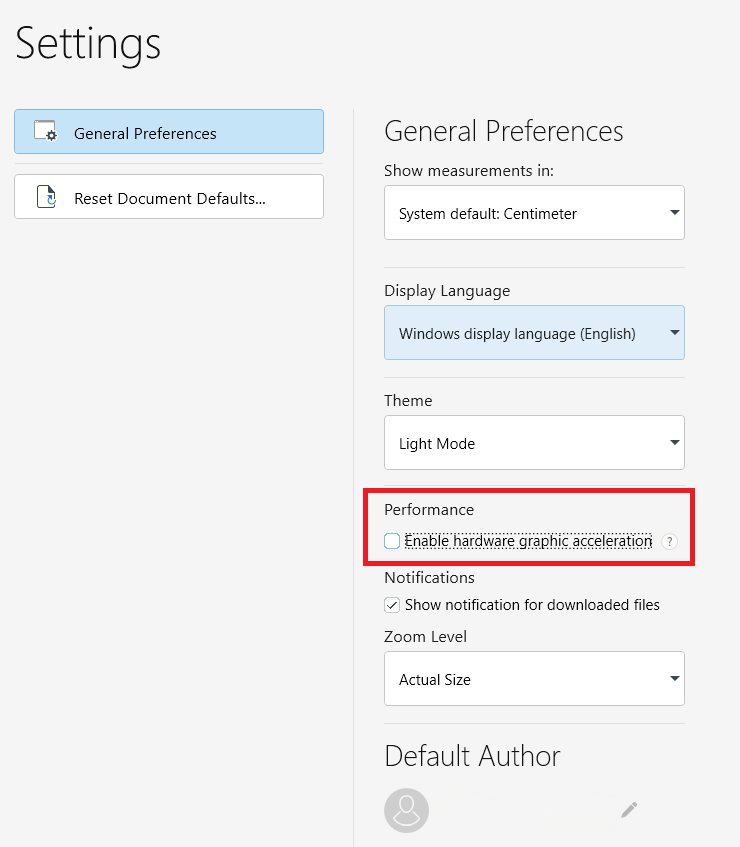
1. Turn off hardware graphic acceleration. On some PCs this setting causes crashes. Open MobiDocs, MobiSheets, or MobiSlides, go to the Settings tab, and uncheck Enable hardware graphic acceleration.
2. Reinstall MobiOffice. Back up your files first, then uninstall and reinstall the app to fix any damaged installation files.
Fix crashes on Mac
If MobiOffice keeps crashing on your Mac:
1. Restart the app, then restart your Mac if the crashes continue.
2. Make sure MobiOffice is up to date. It updates automatically, or you can download the latest version from the MobiOffice download page.
3. Check that you have at least 10–20% free storage.
4. Reinstall MobiOffice if the crashes continue. Back up your files first.
Fix crashes on Android
On Android, a full app cache is a common cause of crashes.
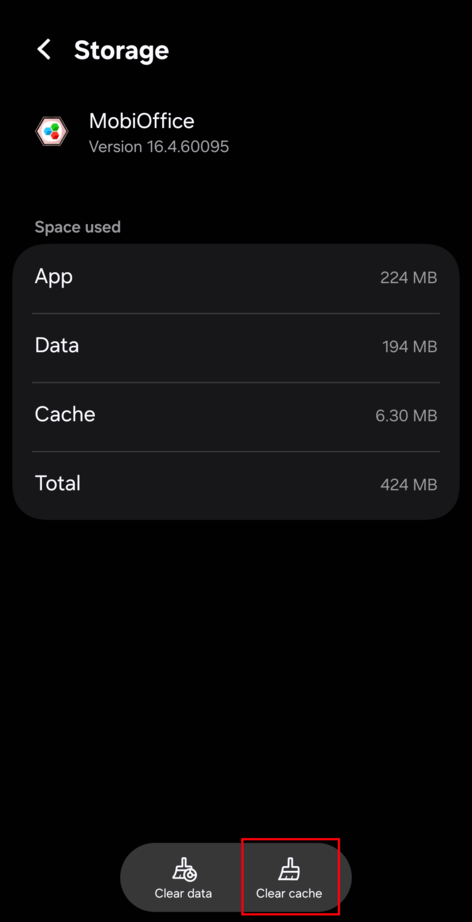
1. Clear the app cache. Go to Settings > Apps > MobiOffice, then tap Storage > Clear cache.
2. Check for an update on the Google Play Store.
3. Make sure you have 3–5 GB of free storage (at least 1 GB).
4. Restart your device.
5. Reinstall MobiOffice if the crashes continue. Back up your files first.
Fix crashes on iOS
On iPhone or iPad, offloading the app clears its temporary data without deleting your files.
1. Offload the app. Go to Settings > General > iPhone/iPad Storage, scroll to MobiOffice, and tap Offload App. Then reinstall it from the Home screen.
2. Check for an update on the App Store.
3. Make sure you have 3–5 GB of free storage (at least 1 GB).
4. Restart your device.
5. Reinstall MobiOffice if the crashes continue. Back up your files first.
When one file keeps crashing the app
If MobiOffice only crashes with a specific file, the file is likely too large or complex.
Open the file, then split it into smaller files.
Remove high-resolution images or unnecessary embedded objects.
Save a fresh copy under a new name, then work from that copy.
Still need help?
If MobiOffice keeps crashing after all these steps, MobiSystems support can help.
If you're still using the older OfficeSuite app, switch to MobiOffice for the best stability. Uninstall OfficeSuite and install MobiOffice instead.
Submit a request to MobiSystems support and describe when the crashes happen and which module is affected.
Where to go next
You've stopped the crashes and recovered your work. Here's what to do next:


